 ShiftScope
Create automated agentic workflows.
Record a task once with ShiftScope, our free Chrome extension. Send us the guide, and we will show you what could run on its own.
When you think of the next one, there is a team standing by to build it.
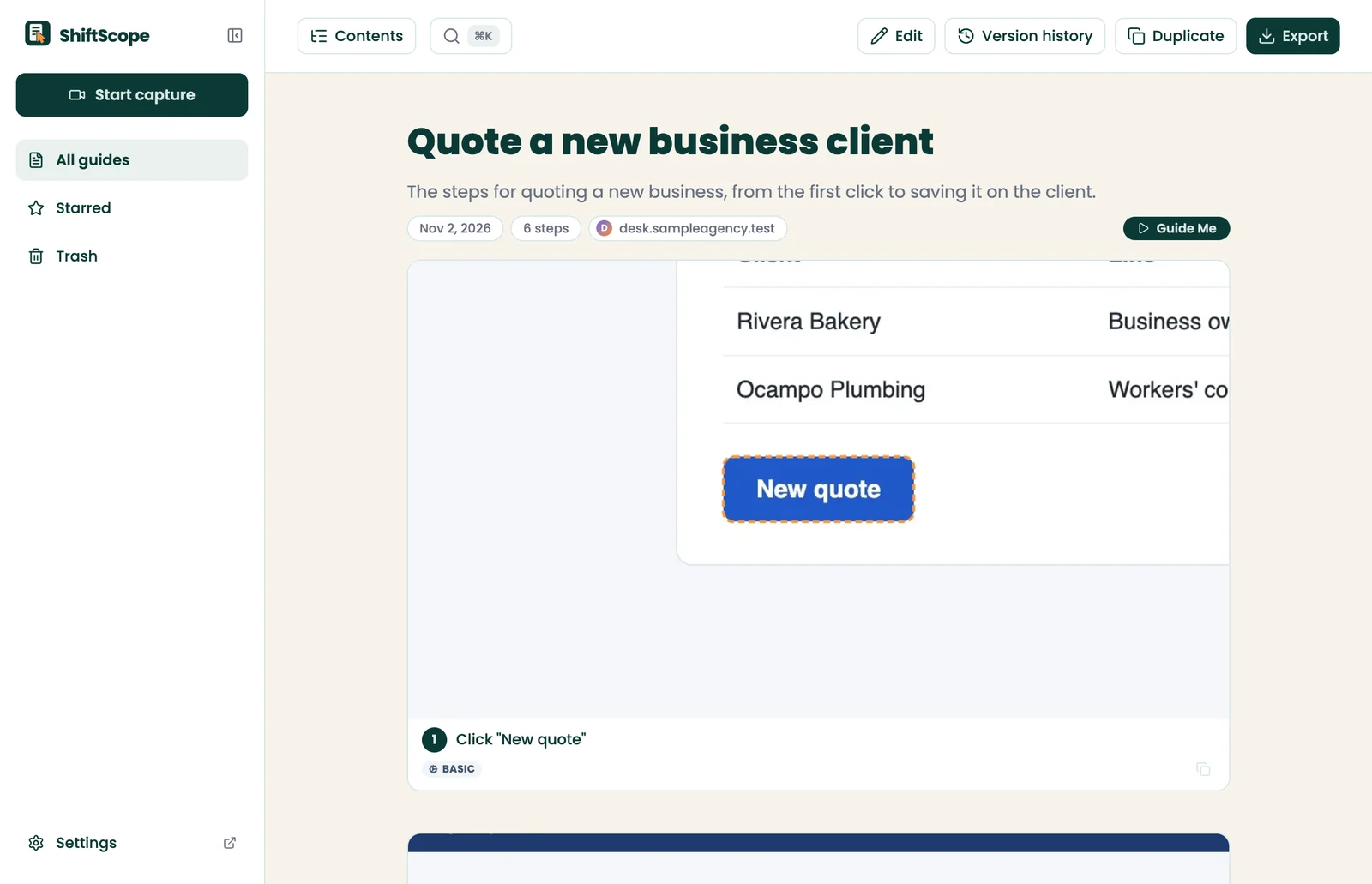
From one recording to a working workflow
- 1
Record the task
Install ShiftScope and do the task the way you usually do. Your clicks, typing, and page changes become steps, each with a screenshot.
- 2
Send us the guide
Blur anything private, export a .shiftscope file, and send it to us from this page.
- 3
See what could run on its own
We come back with what we would automate first and how a workflow would handle it.
- 4
We build it
When you want to go ahead, our team builds the workflow and your people stay in charge of the steps that need them.
Recorded your task? Send it here.
Your guide goes to our team, not to a public page. It includes the pictures as you left them, so blur anything private before you export.
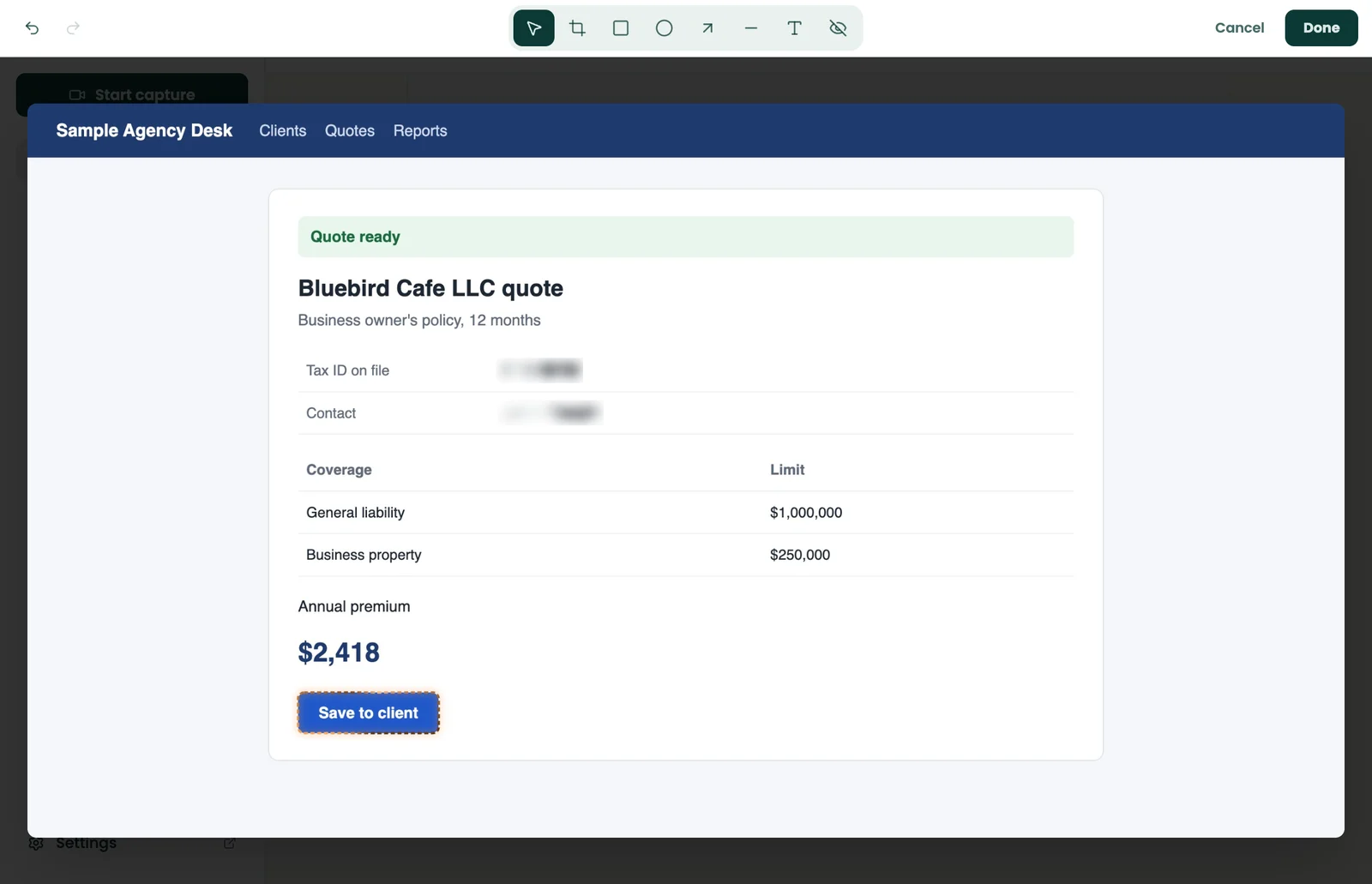
Blur what is private before you share.
Drag a blur over any part of a screenshot. The blur is burned into the exported picture.
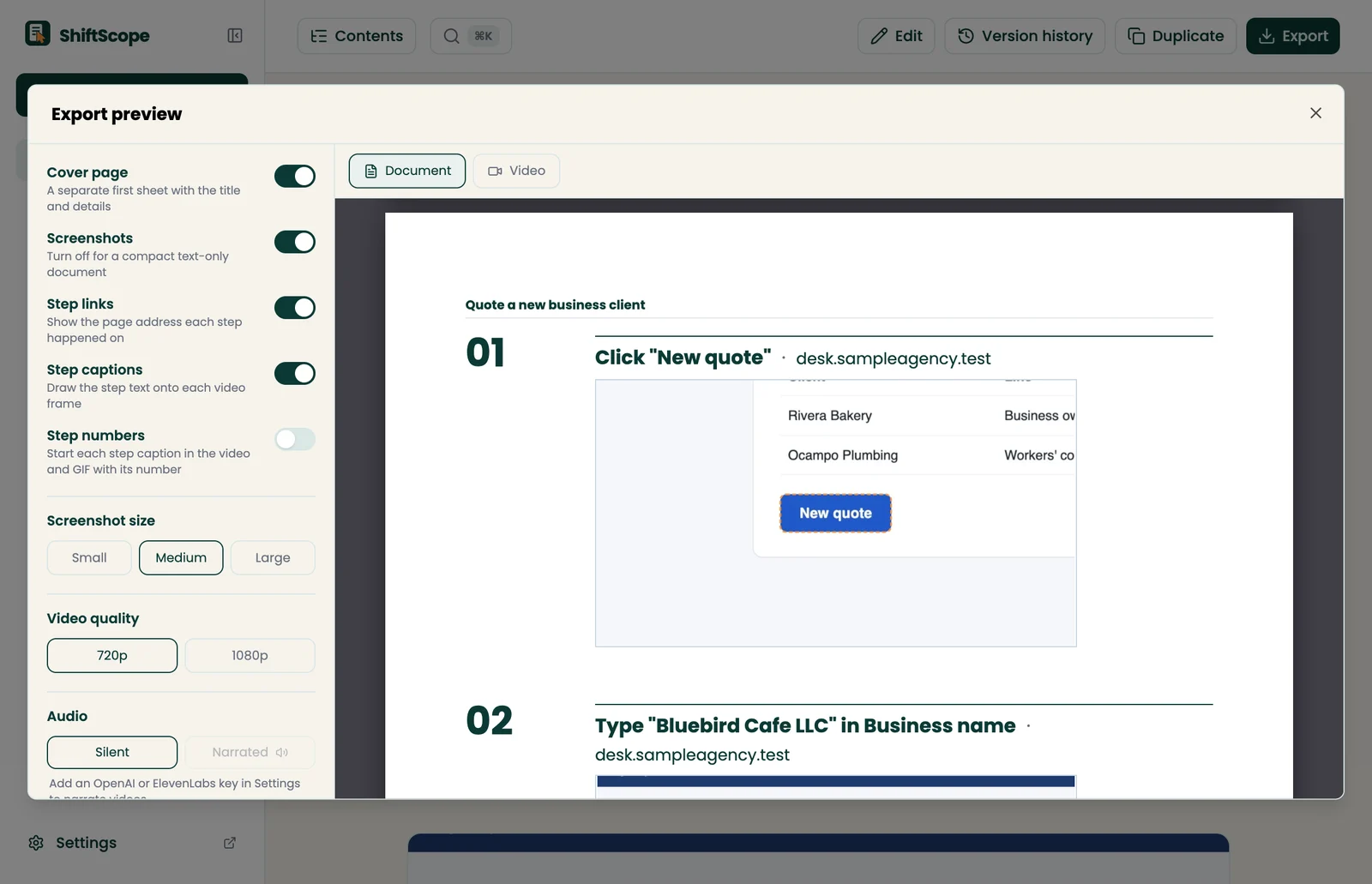
Keep the guide either way.
Your recording is useful on its own. Export a PDF, Word doc, web page, or video to train the next person.
Your recording stays on your computer until you send it
- No account and no sign-in.
- Recordings and guides stay in your own browser until you export them.
- Steps and screenshots are written only during a recording you started.
- Password field values are not read or stored.
Help
I installed it. Where is it?
Click the puzzle piece at the top right of Chrome and pin ShiftScope. Then click its icon, the teal tile with a page and an orange arrow.
How do I record my first guide?
Open the page where the task begins, click the ShiftScope icon, and start a capture. Do the task, then press Finish in the side panel.
Why will it not record this page?
Chrome does not let extensions record its own pages, such as chrome:// pages and the Chrome Web Store. Open the website where the task happens and try again.
How do I blur something on a screenshot?
Open the guide, press Edit, open the step’s picture, pick the blur tool, and drag over what you want hidden. Press Done to keep it. Check every picture before you share, since blur covers what you mark.
Does what I type show up in a guide?
It can. Step text can include what you typed, and pictures show what was on screen. A .shiftscope file removes typed text by default. PDF, Word, HTML, and video exports keep your step text as written, so review those first. You can turn off “Record what you type” in Settings, and a made-up client is a good choice for practice runs.
Where are my guides stored?
In your browser, on your computer. Removing the extension can remove them too, so export anything you want to keep first.
Does it use AI?
Only if you add your own API key in Settings. Without a key, ShiftScope names steps from the page itself and sends nothing to an AI provider.
Something else, or something not working? Email hello@bigstarfish.com and tell us what you were trying to do.